

Root keys authenticate your requests to the Unkey API. Each root key belongs to a single workspace and can only access resources within that workspace. Use them to create API keys, manage identities, configure rate limits, and perform other administrative operations from your server.
Root keys have powerful permissions. Never expose them in client-side code, commit them to git, or share them publicly.

Root keys vs API keys#
| Root keys | API keys | |
|---|---|---|
| Purpose | Manage Unkey resources | Authenticate your users |
| Who uses it | You (the developer) | Your customers |
| Permissions | Create/update/delete keys, manage keyspaces | Access your API endpoints |
| Where stored | Your server's environment variables | Given to customers |
Create a root key#
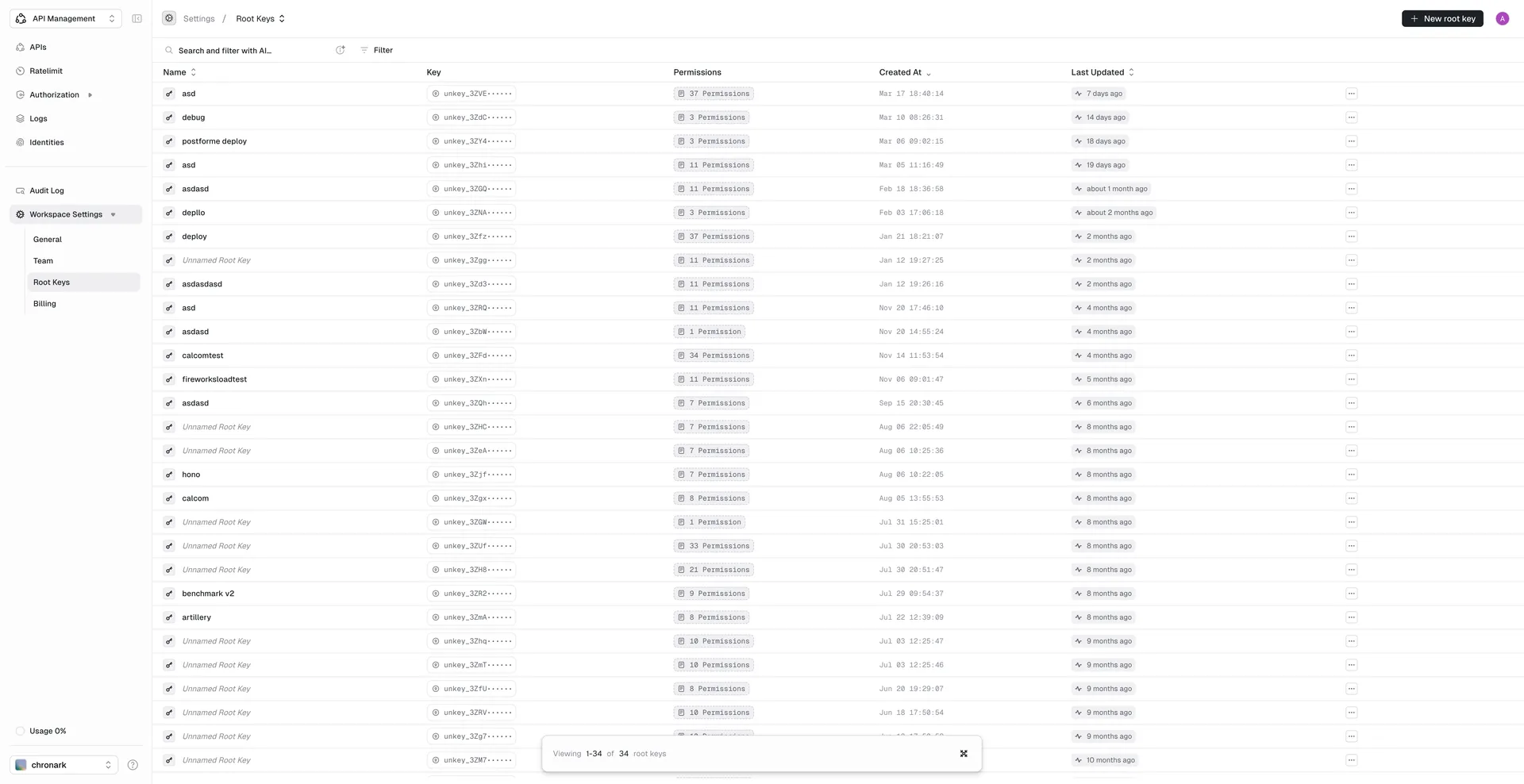
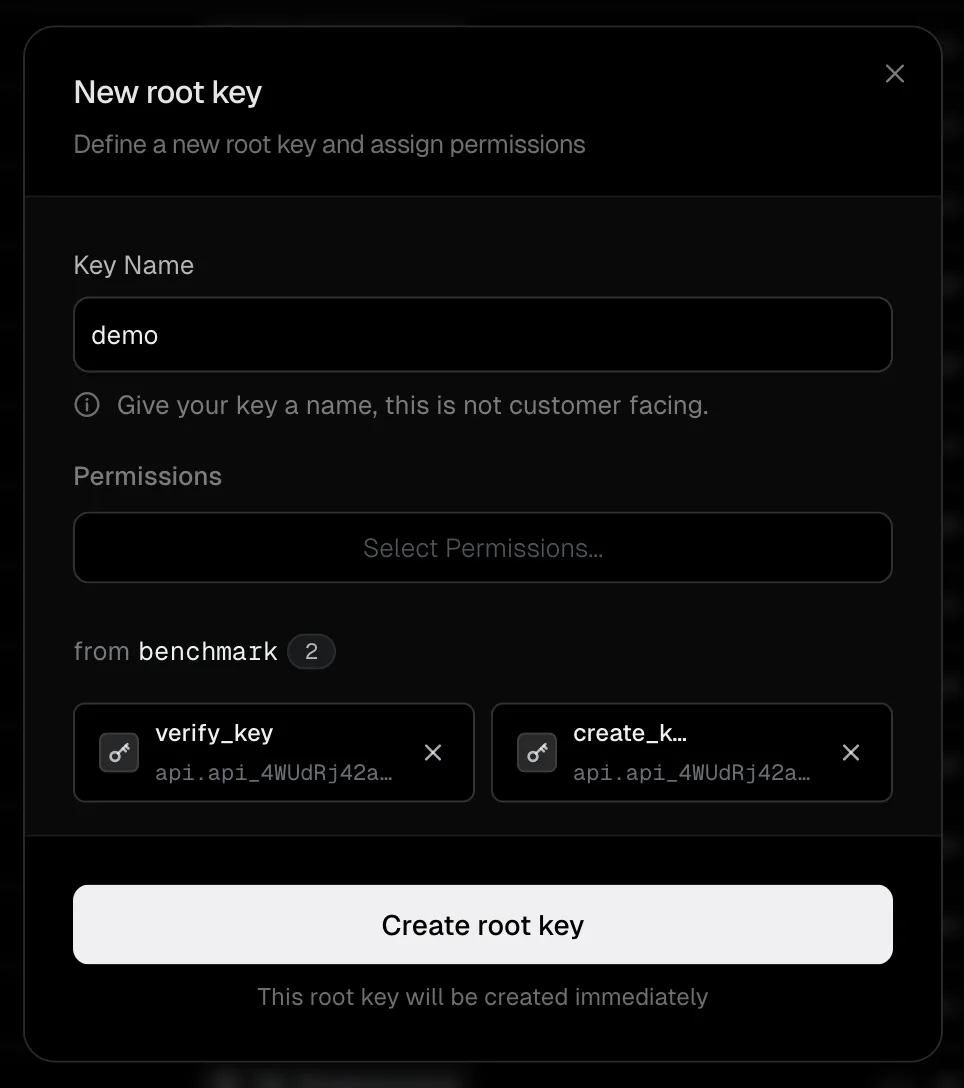
- Navigate to Settings > Root Keys.
- Click Create New Key.
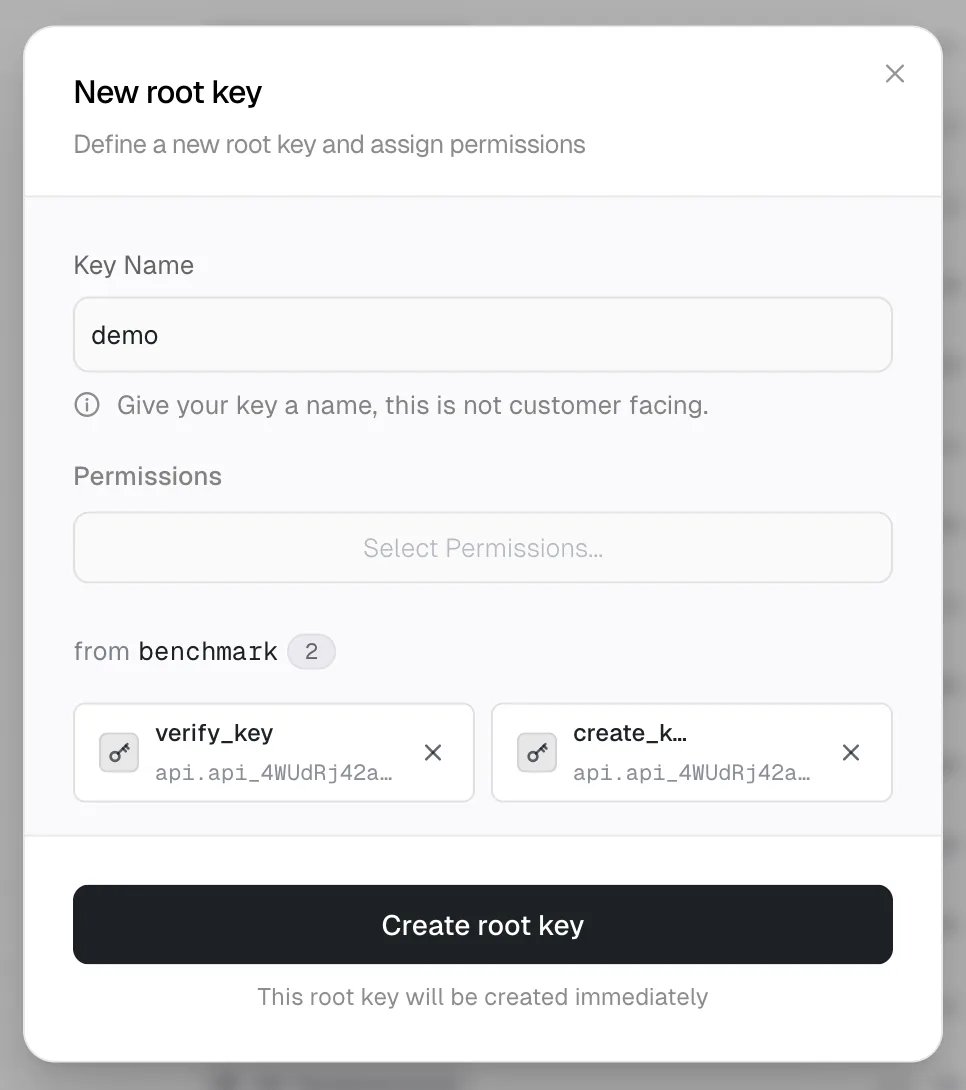
- Enter a descriptive name (for example, "Vercel Production" or "CI Pipeline").
- Select the permissions the key needs. Grant only what the key requires.
- Click Create root key.
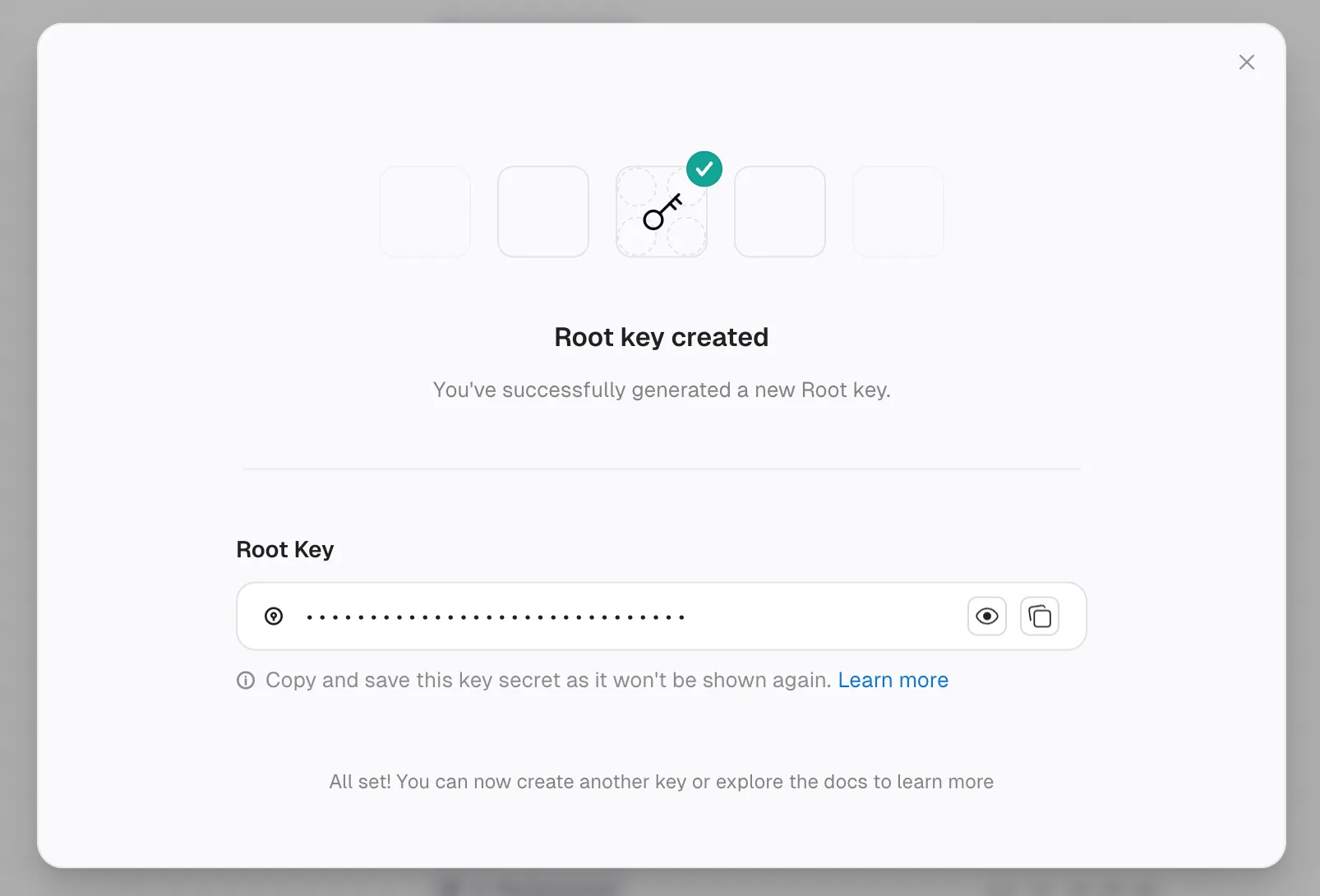
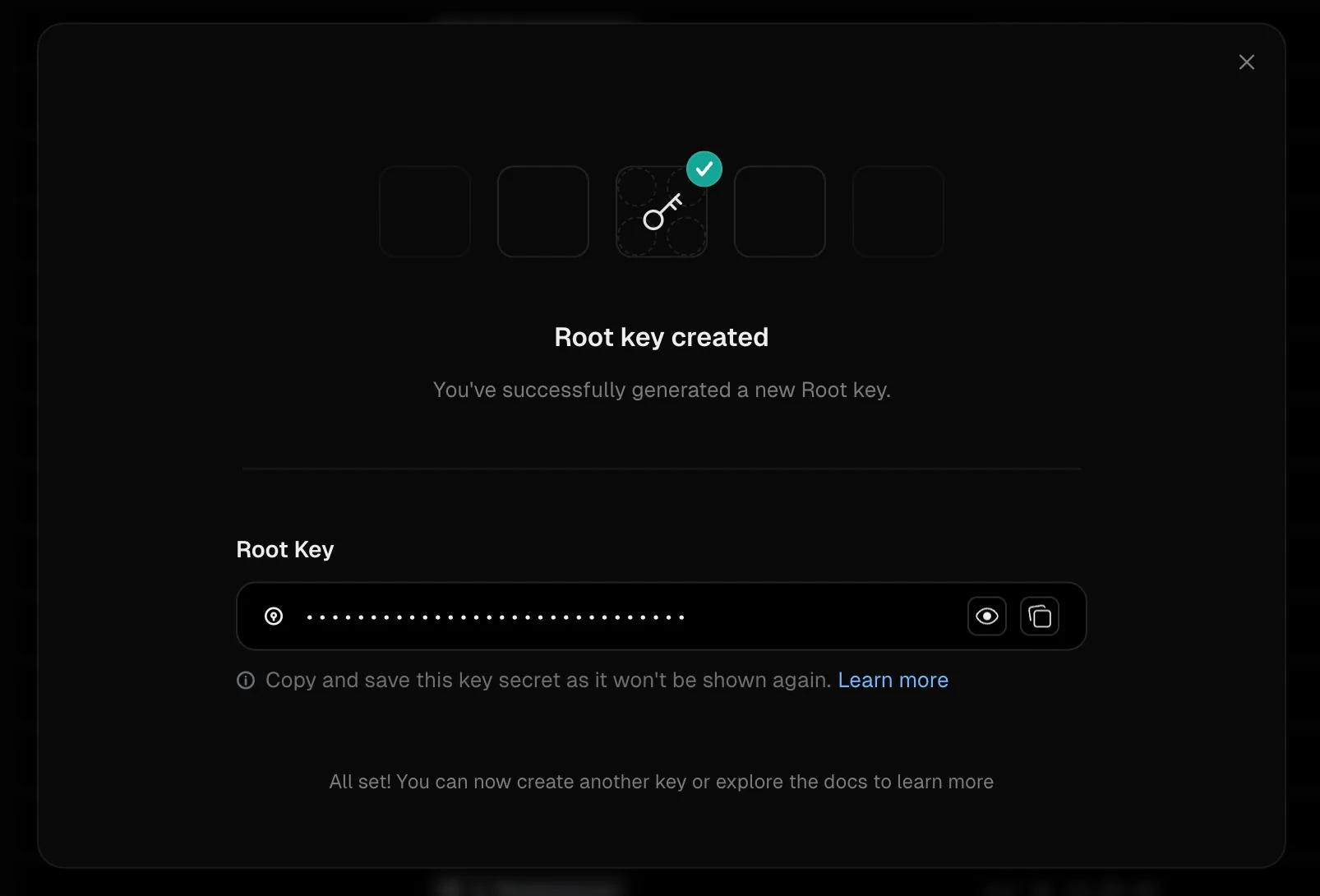
The key secret is displayed once after creation. Copy it immediately, as you cannot retrieve it later. Unkey only stores a hash of the key.
Store it in your environment variables:
Edit a root key#
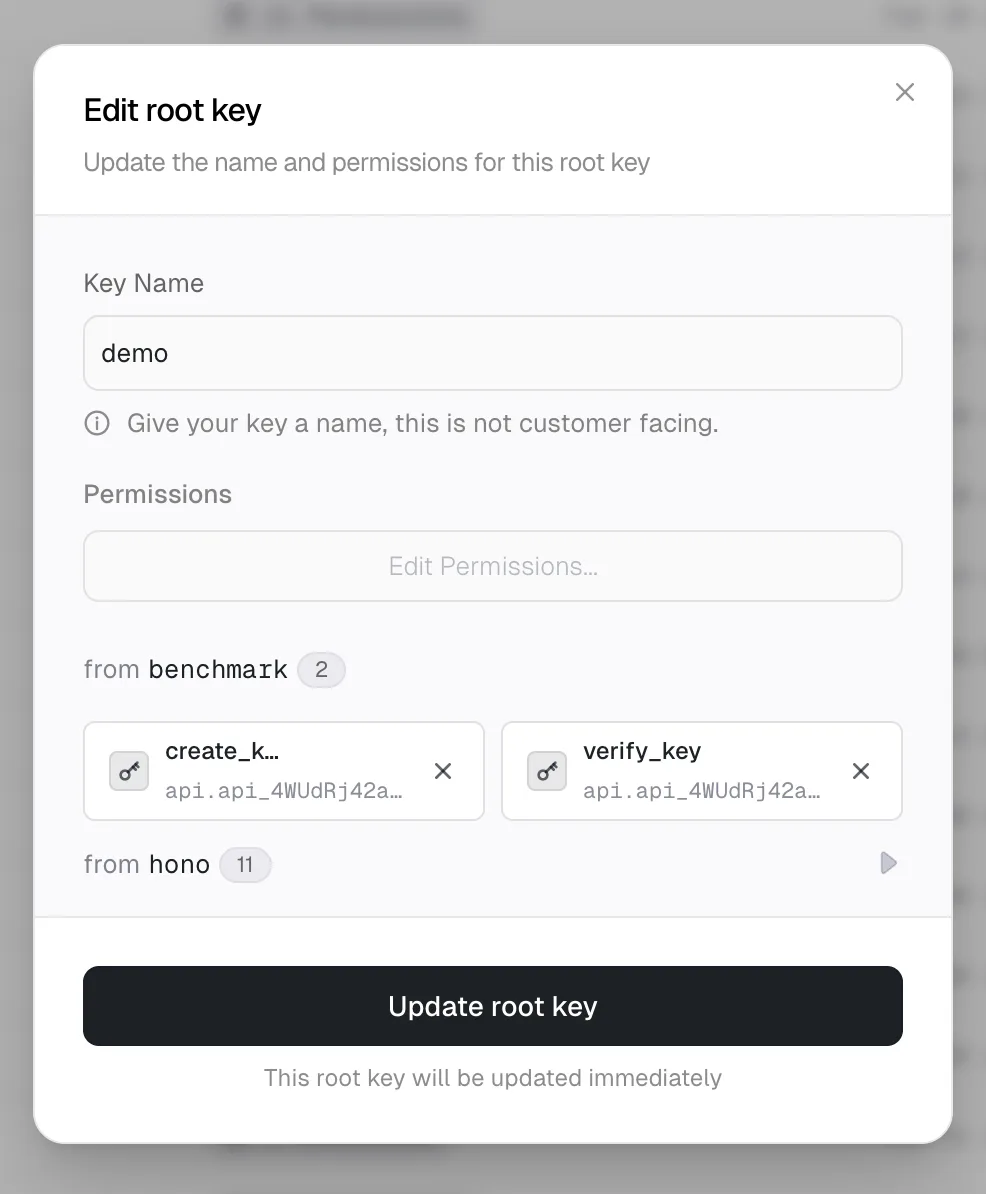
- Navigate to Settings > Root Keys.
- Click the actions menu (...) on the key row.
- Select Edit root key....
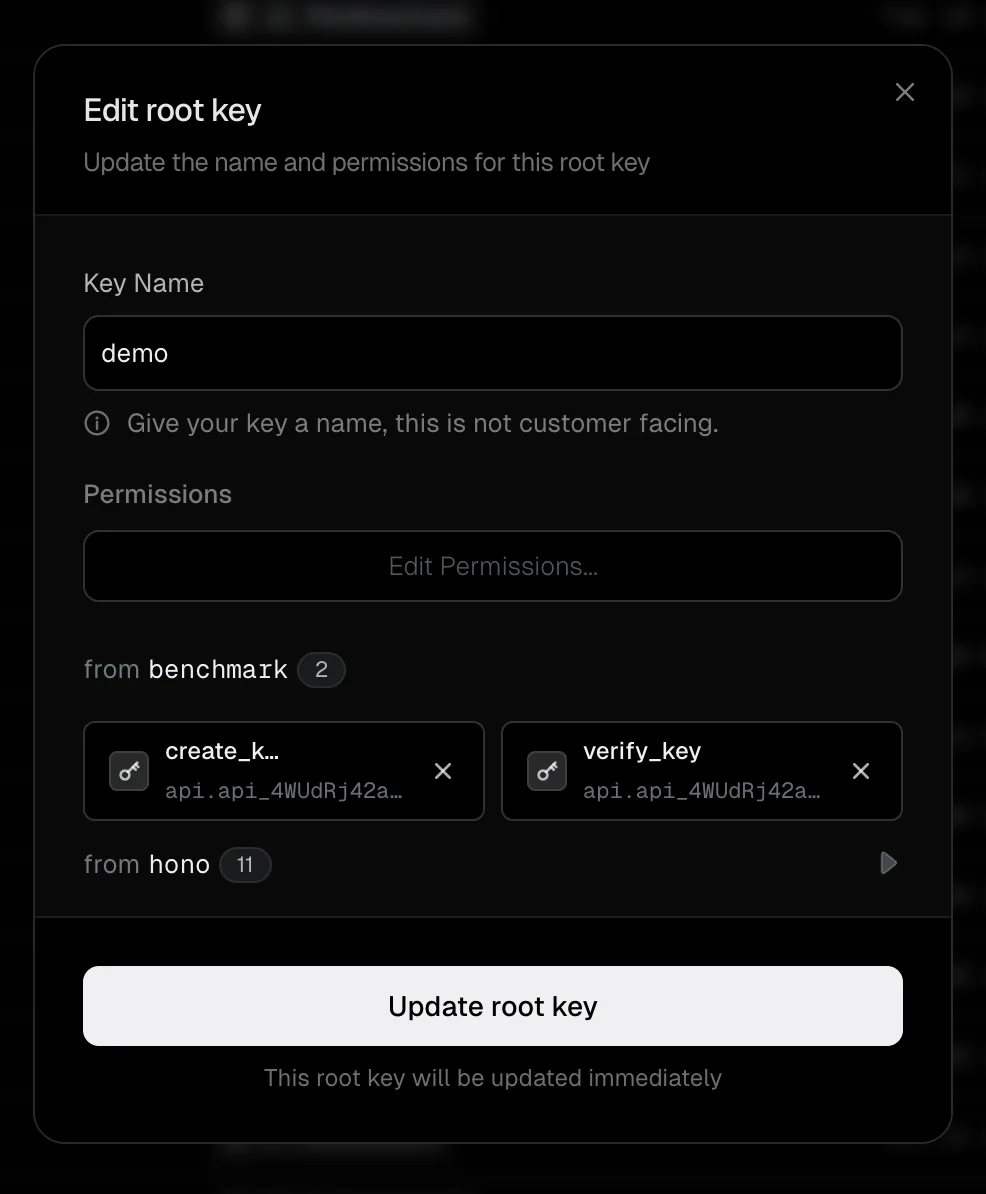
- Update the name or permissions.
- Click Update root key.
Delete a root key#
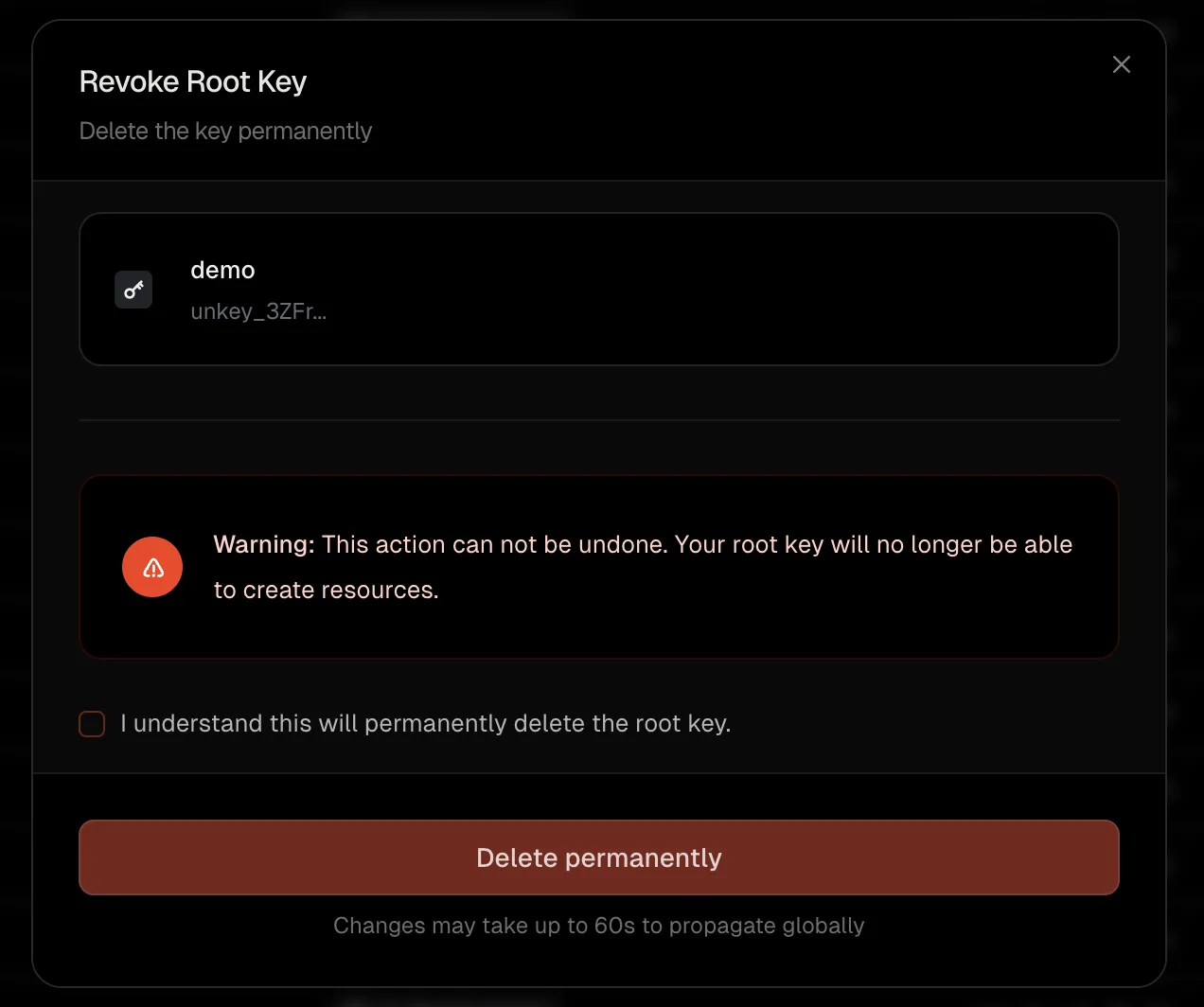
- Navigate to Settings > Root Keys.
- Click the actions menu (...) on the key row.
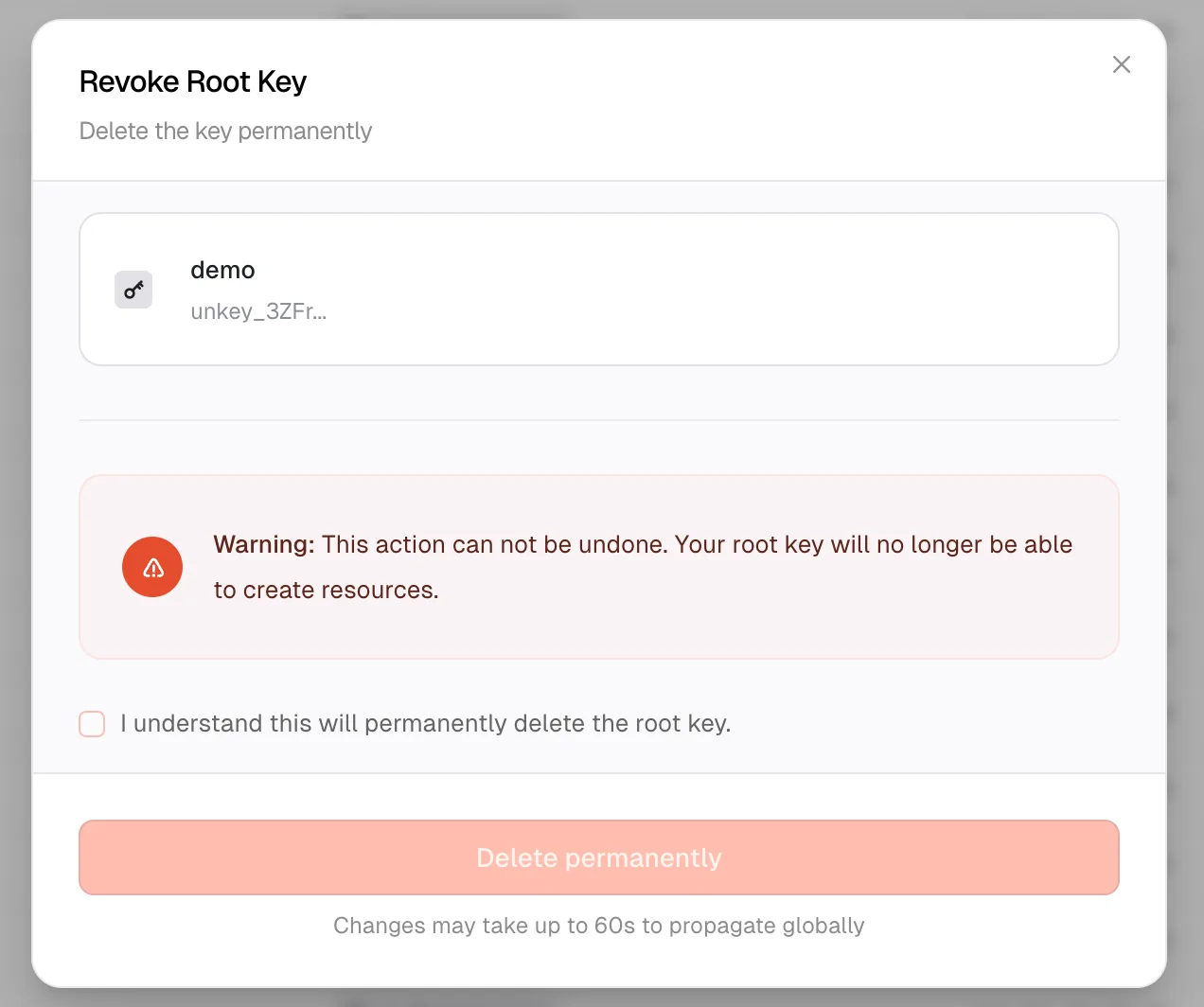
- Select Delete root key.
- Check the confirmation box and click Delete permanently.
Deleting a root key is immediate and permanent. Any application using the key loses access.
Rotate a root key#
Rotation issues a new root key with the same permissions as the original and schedules the old key to expire after a grace period you choose. Use it for routine credential rotation or to replace a leaked key without downtime.
- Navigate to Settings > Root Keys.
- Click the actions menu (...) on the key row.
- Select Rotate root key.
- Choose a grace period for the old key:
- Revoke immediately – revoke the old key as soon as the new one is created.
- 1 minute, 15 minutes, 1 hour, 6 hours, or 24 hours – keep the old key valid for that long so deployed services keep working while you roll out the new key.
- Click Rotate key.
- Copy the new key secret from the success dialog and store it. The plaintext is shown only once.
- Update your application's environment variables with the new key and deploy.
The new key inherits the original permissions and any expiration that was already set. The old key continues to verify until the grace period elapses, then it is revoked automatically. Expired keys cannot be rotated; create a new key instead.
Choose a grace period that covers your slowest deploy. If a service still uses the old key after the grace period ends, it will receive an EXPIRED response.
Best practices#
Use minimal permissions
Only grant the permissions each root key actually needs. A key that only verifies API keys does not need delete_key permission.
Use separate keys for different services
Create dedicated root keys for each service or environment. For example, production-api-server for verifying and creating keys, admin-dashboard for full management access, and billing-service for updating key credits only.
Rotate keys periodically
Even without a breach, rotate root keys every few months as a security practice. Create a new key, update your services, then delete the old one.
Never log root keys
Ensure your logging does not capture root keys in request bodies or headers.
If a root key is leaked#
Act immediately:
- Go to Settings > Root Keys and delete the compromised key.
- Create a replacement key with the same permissions.
- Deploy the new key to your environment.
- Review audit logs for any unauthorized activity.
- If you suspect API keys were created or modified, consider rerolling them.
Enable GitHub secret scanning to get automatic alerts if your root key is accidentally committed.