

When a deployment causes issues, you can roll back to a previous version instantly. Rollbacks switch traffic atomically, so there's no downtime during the transition.
Roll back a deployment#
- Open your project's Deployments tab.
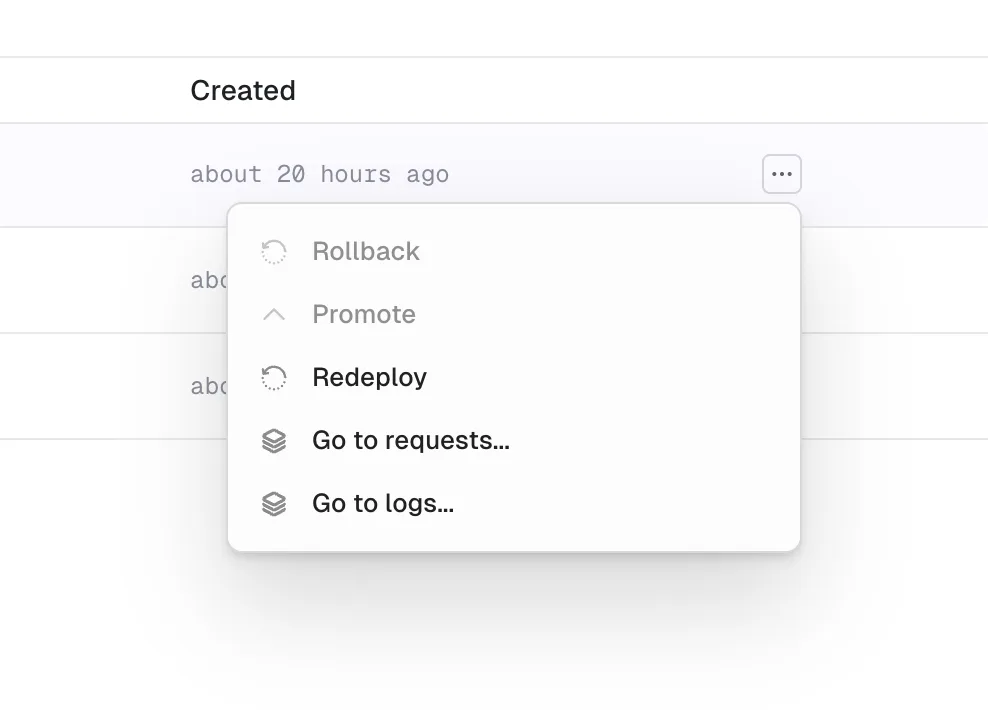
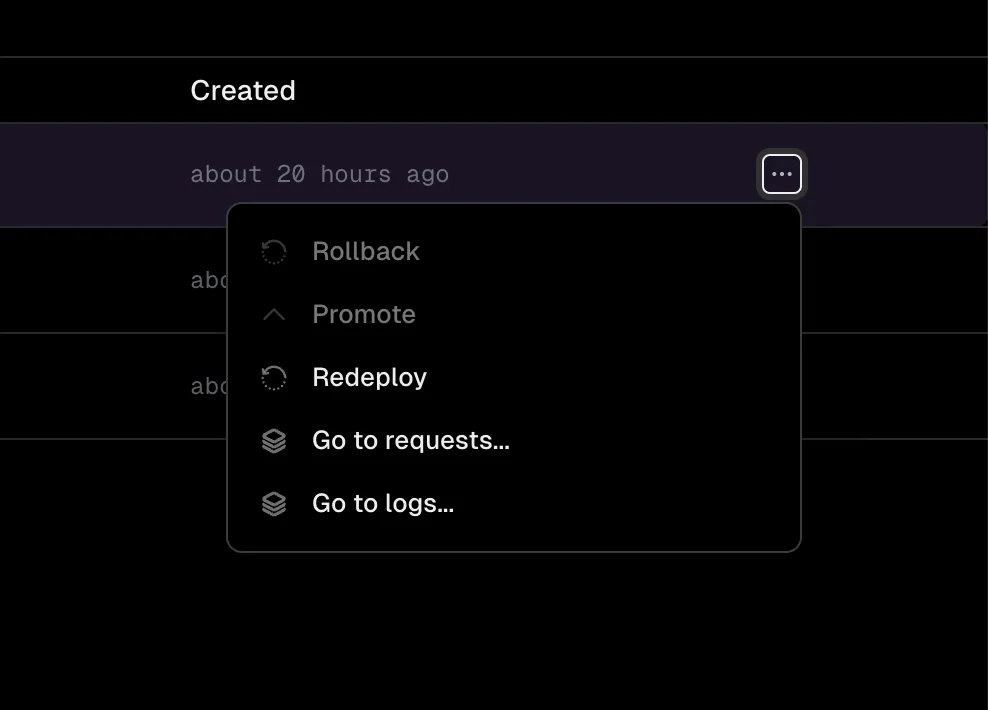
- Click the three-dot menu on the deployment you want to revert to.
- Select Rollback.
- Review the current deployment, affected domains, and target deployment in the confirmation dialog.
- Click Rollback to target version.
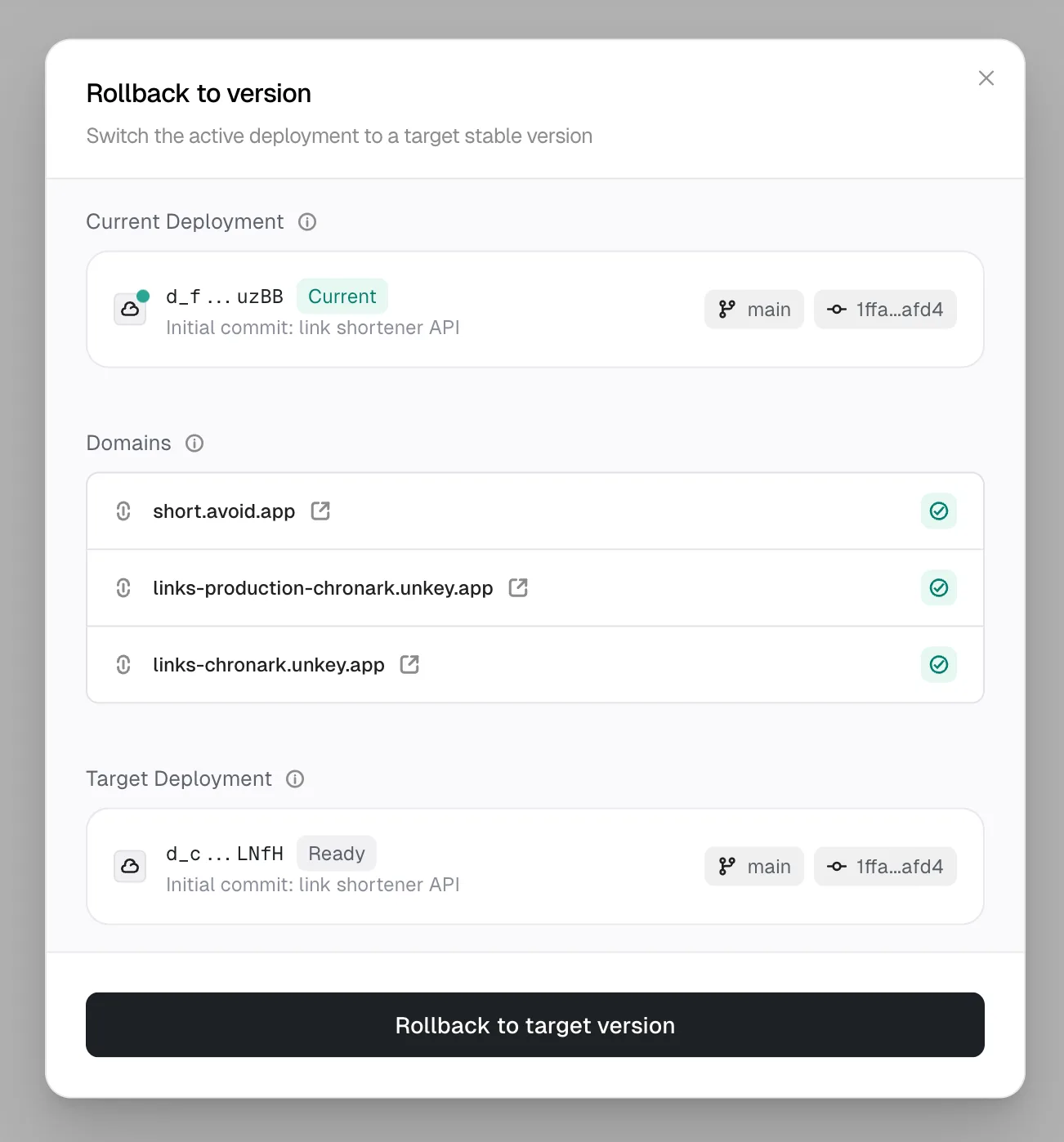
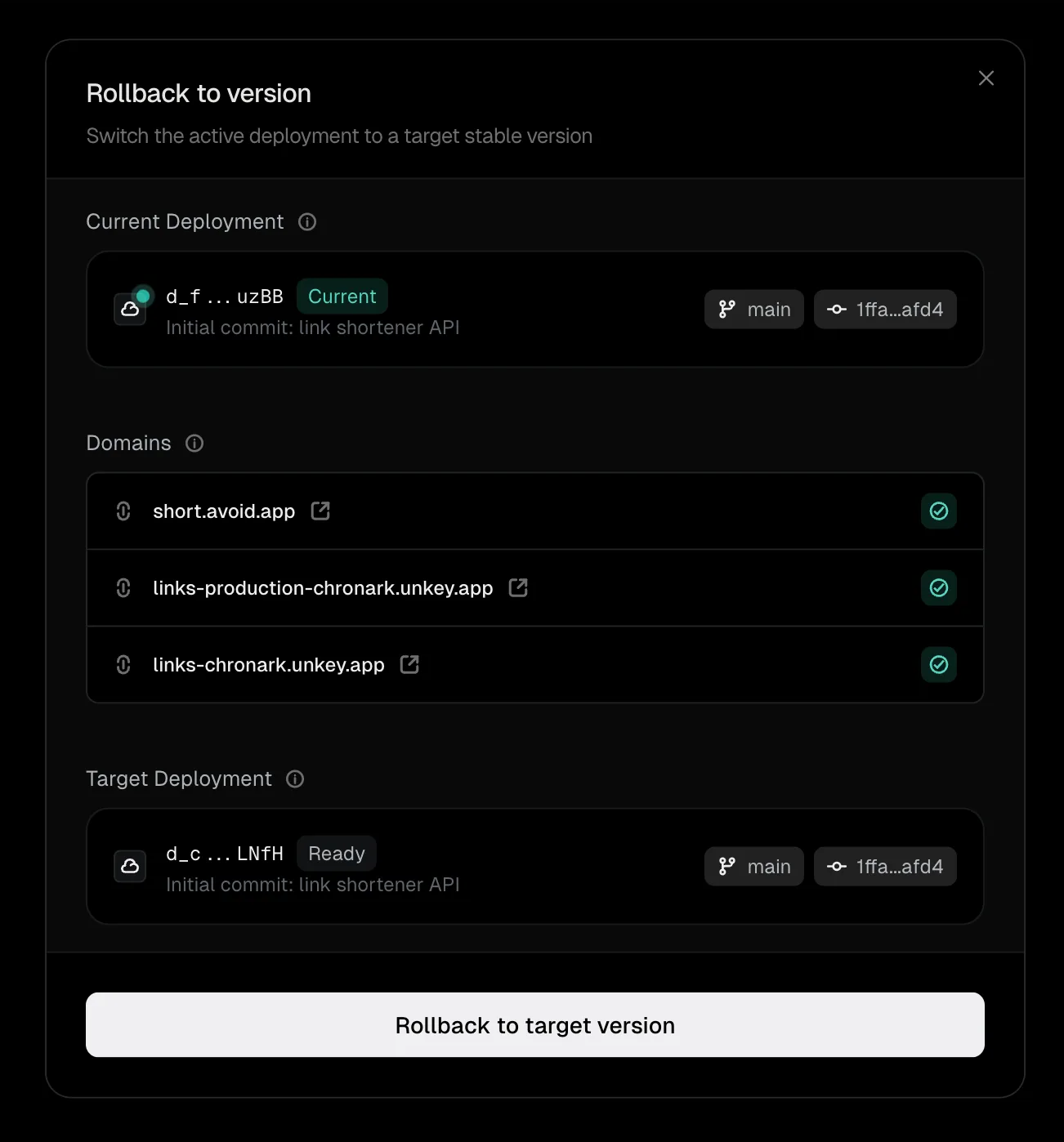
Unkey reassigns the environment and branch domains to point to the target deployment immediately. The previous deployment stays running until routes are fully switched, so no requests are dropped.
What happens after a rollback#
After a rollback, the affected environment enters a rolled-back state. This only applies to the environment where you triggered the rollback (for example, production). Other environments are unaffected.
In a rolled-back environment:
- The target deployment is serving traffic.
- New pushes to the branch still create deployments, but domains don't get reassigned to them automatically.
- The dashboard indicates that the environment is running a rolled-back version.
This prevents a new push from undoing your rollback. You stay on the rolled-back version until you explicitly promote a deployment.
Promote a deployment#
Promoting a deployment reassigns domains to point to it and restores normal behavior. After promoting, the next successful deployment from a push automatically receives traffic again.
- Open your project's Deployments tab.
- Click the three-dot menu on the deployment you want to promote.
- Select Promote.
Rolling forward vs rolling back#
| Approach | When to use |
|---|---|
| Roll back | The issue is urgent and you need to restore service immediately |
| Roll forward | The fix is quick, and you'd rather push a new deployment with the correction |
Rolling back is faster since it reuses an existing, known-good deployment. Rolling forward (pushing a fix) creates a new deployment and goes through the full build and deploy pipeline.
In production, previous deployments stay running for 30 minutes after a new version goes live, then spin down. In preview environments, deployments stay running until they've been idle (zero requests) for 1 hour. Rolling back to a running deployment is instant. Rolling back to a spun-down deployment is still possible, but takes longer because the containers need to start up again. See instant rollbacks for details.