

Unkey deploys your application to one or more geographic regions. Traffic routes to the nearest healthy region automatically, reducing latency for your users.
Available regions#
| Region | Location | Provider |
|---|---|---|
us-east-1 | N. Virginia, US | AWS |
us-west-2 | Oregon, US | AWS |
eu-central-1 | Frankfurt, Germany | AWS |
ap-southeast-1 | Singapore | AWS |
Need a region that isn't listed? Reach out on Discord or email support@unkey.com to request it.
Configure regions#
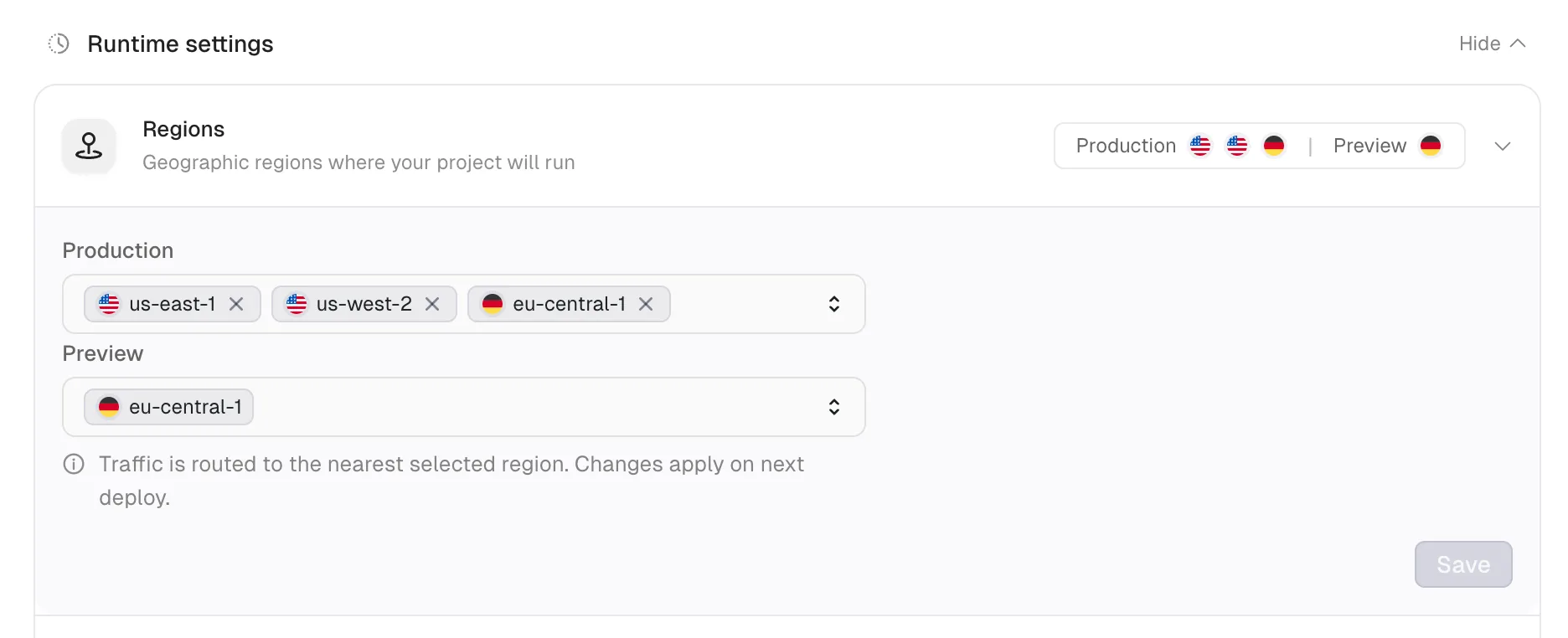
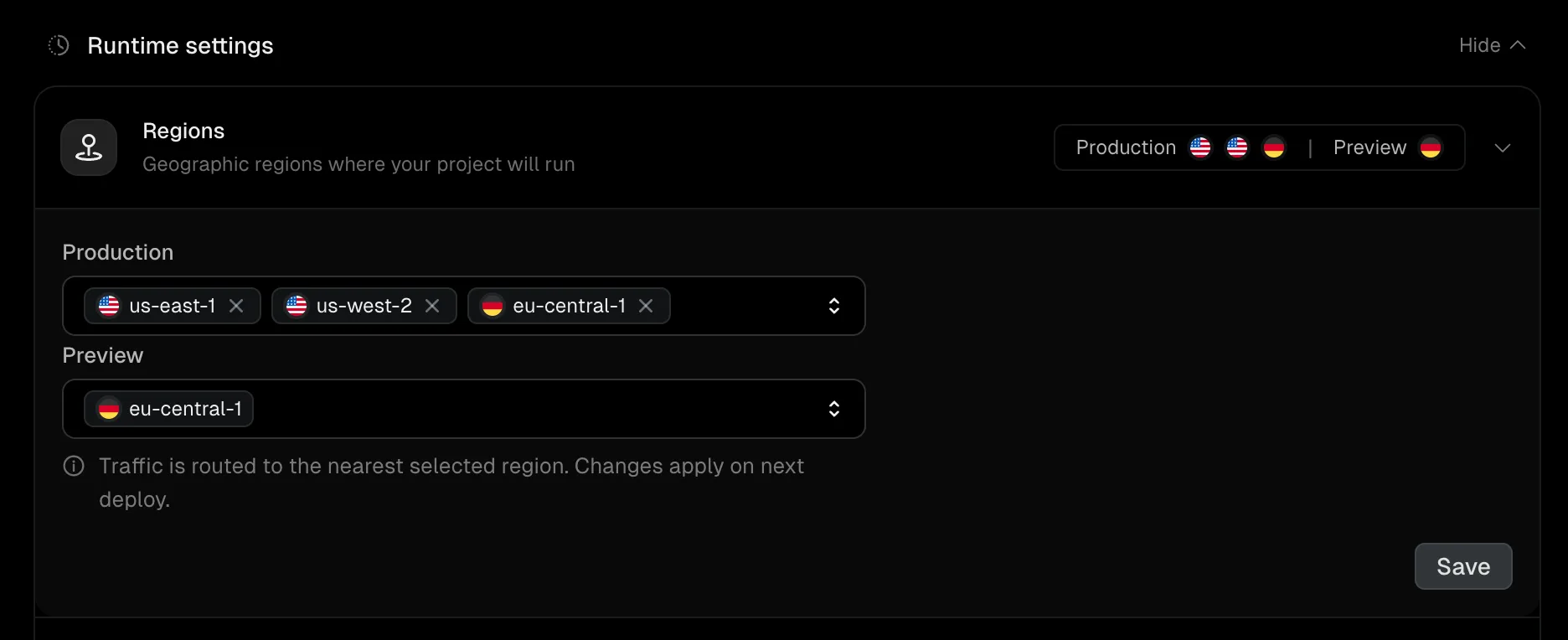
Select regions for your app in the Settings tab under Runtime settings > Regions. You must select at least one region.
Production and preview environments can use different region configurations. For example, you might deploy production to all three regions for global coverage while keeping preview deployments in a single region to reduce cost.
Instances per region#
Each region runs one or more instances of your app. Configure the autoscaling range in Settings > Runtime settings > Instances as a minimum and maximum instance count. The default is one instance per region (1 – 1).
When the minimum and maximum differ, Unkey scales each region between those bounds based on CPU load. Setting both values to the same number pins the instance count and disables autoscaling.
Running multiple instances in a region provides redundancy. If one instance fails, traffic routes to the remaining healthy instances. For high availability, use at least 2 instances per region. See Instances for the full availability model.
During the beta, the maximum is four instances per region. Contact support@unkey.com if you need more.
Traffic routing#
Unkey routes incoming requests to the nearest healthy region based on the client's location. If a region becomes unhealthy (all instances failing health checks), traffic reroutes to the next nearest region.
Add or remove regions#
Changing your region configuration takes effect on the next deployment. Existing deployments continue running in their original regions until replaced.
To update regions:
- Open your project's Settings tab.
- Under Runtime settings, add or remove regions.
- Save the changes.
- Trigger a new deployment to apply the updated configuration.